> ## Documentation Index
> Fetch the complete documentation index at: https://archie.com/docs/llms.txt
> Use this file to discover all available pages before exploring further.
# File Manager
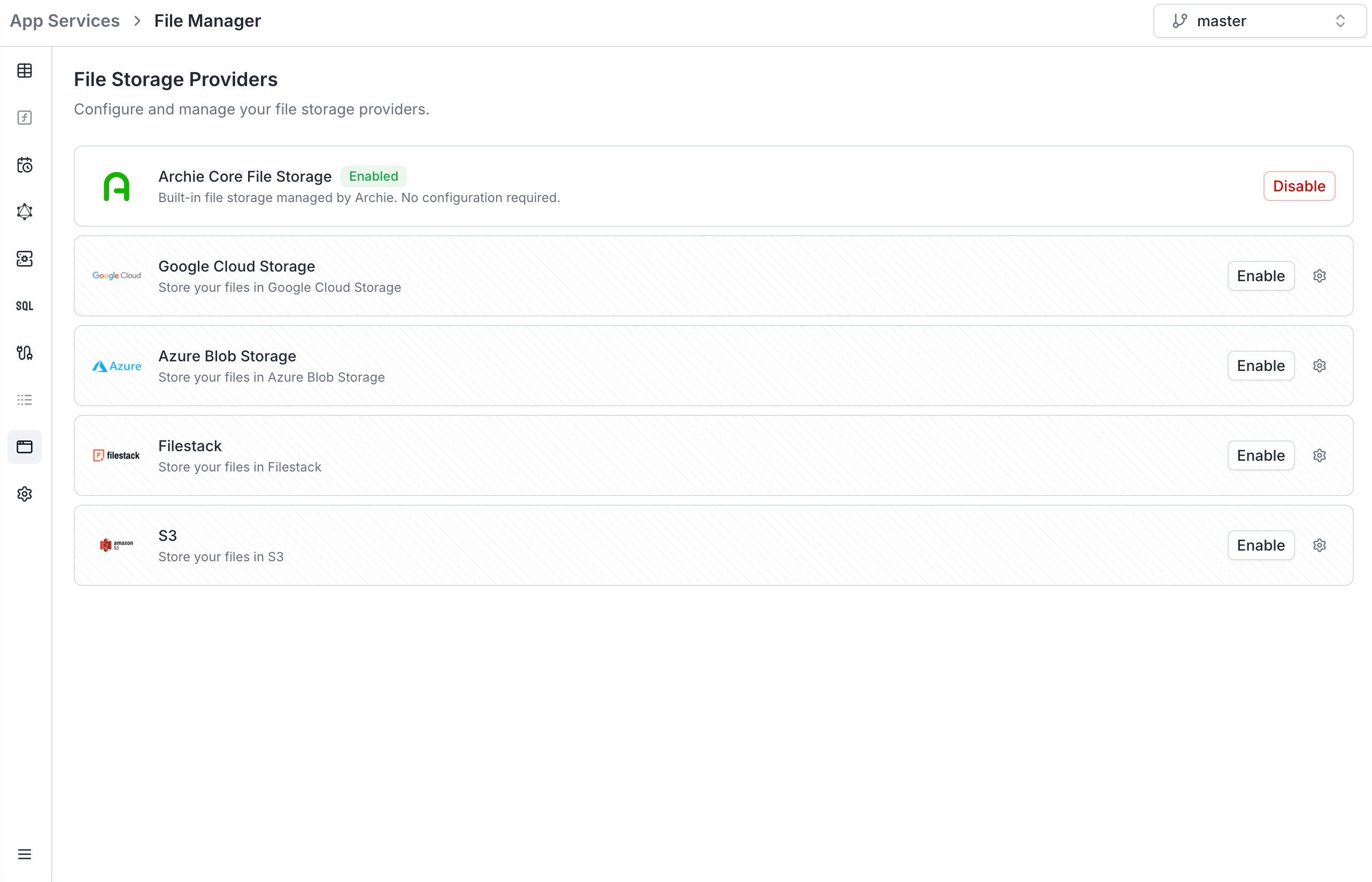
> Connect your project to a cloud storage provider — S3, Google Cloud Storage, Azure Blob, or Filestack — to serve uploads and assets.
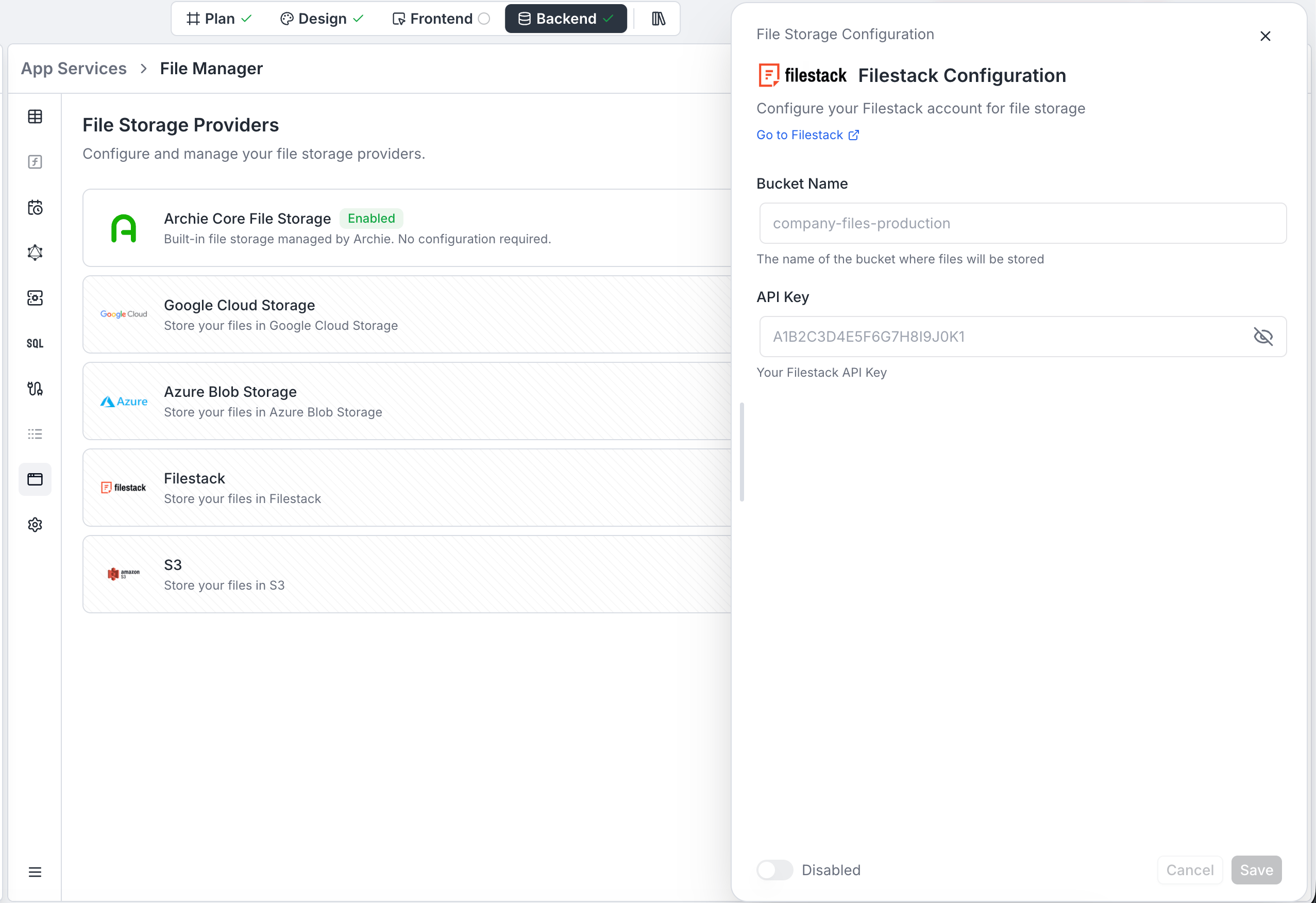
The File Manager is where you connect your project to a cloud storage provider. Pick a provider, paste in credentials, and the [REST file endpoints](/docs/features/backend/rest-api-explorer/file-management) and the [Assets feature](/docs/features/assets/overview) start using it as their backing store. No new code on your end.
To open it, navigate to **App Services → File Manager** in the Backend Console.
 ## Per-environment configuration
File storage providers are scoped per environment. Each [environment](/docs/features/backend/environments/overview) has its own set of configured providers — useful for keeping `dev` uploads in a separate bucket from `production`.
When you branch a new environment, you can optionally tick **File storage providers** in the branching modal to copy the configuration. Each copy gets a new unique identifier so it can be edited independently.
## Supported providers
Connect an AWS S3 bucket via Access Key ID and Secret Access Key.
Connect a GCP bucket via a service account credentials JSON.
Connect an Azure Storage container via account name and access key.
Connect a Filestack bucket via the API key from your Filestack dashboard.
To configure a provider, click **Configure** next to it and fill in the credentials. The provider becomes available immediately to the file endpoints.
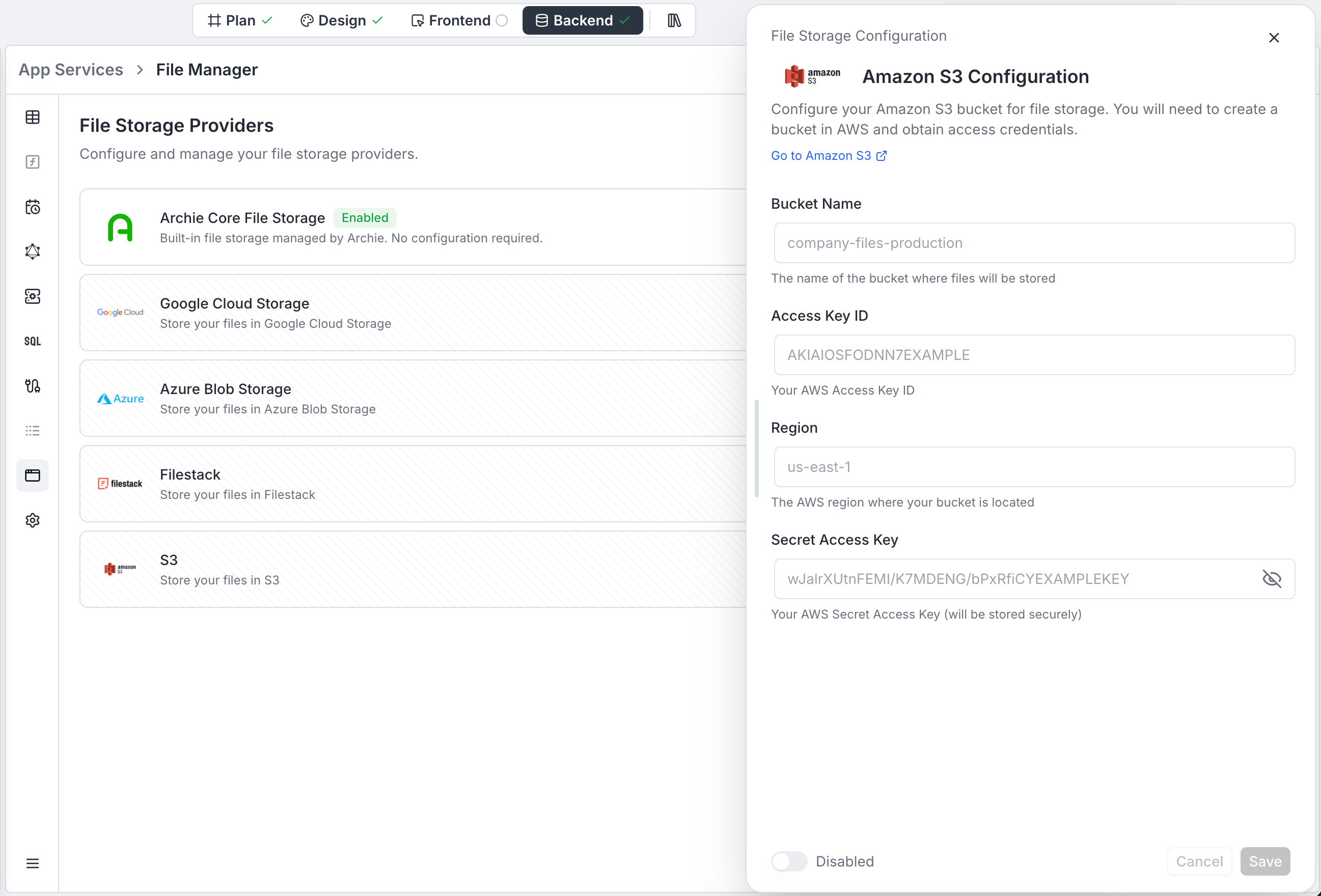
### Amazon S3
| Field | What goes in it |
| --------------------- | ------------------------------------------------------------------------- |
| **Bucket Name** | Exact name of the S3 bucket where files will be stored. |
| **Access Key ID** | Public identifier for the AWS IAM user authorized to write to the bucket. |
| **Secret Access Key** | Private key paired with the Access Key ID. Stored encrypted. |
| **Region** | AWS region code where the bucket lives (e.g., `us-east-1`). |
## Per-environment configuration
File storage providers are scoped per environment. Each [environment](/docs/features/backend/environments/overview) has its own set of configured providers — useful for keeping `dev` uploads in a separate bucket from `production`.
When you branch a new environment, you can optionally tick **File storage providers** in the branching modal to copy the configuration. Each copy gets a new unique identifier so it can be edited independently.
## Supported providers
Connect an AWS S3 bucket via Access Key ID and Secret Access Key.
Connect a GCP bucket via a service account credentials JSON.
Connect an Azure Storage container via account name and access key.
Connect a Filestack bucket via the API key from your Filestack dashboard.
To configure a provider, click **Configure** next to it and fill in the credentials. The provider becomes available immediately to the file endpoints.
### Amazon S3
| Field | What goes in it |
| --------------------- | ------------------------------------------------------------------------- |
| **Bucket Name** | Exact name of the S3 bucket where files will be stored. |
| **Access Key ID** | Public identifier for the AWS IAM user authorized to write to the bucket. |
| **Secret Access Key** | Private key paired with the Access Key ID. Stored encrypted. |
| **Region** | AWS region code where the bucket lives (e.g., `us-east-1`). |
 ### Google Cloud Storage
| Field | What goes in it |
| -------------------- | --------------------------------------------------------------- |
| **Bucket Name** | Name of the bucket created in your GCP console. |
| **Project ID** | Unique identifier of the GCP project. |
| **Credentials JSON** | Complete contents of the service account credentials JSON file. |
### Google Cloud Storage
| Field | What goes in it |
| -------------------- | --------------------------------------------------------------- |
| **Bucket Name** | Name of the bucket created in your GCP console. |
| **Project ID** | Unique identifier of the GCP project. |
| **Credentials JSON** | Complete contents of the service account credentials JSON file. |
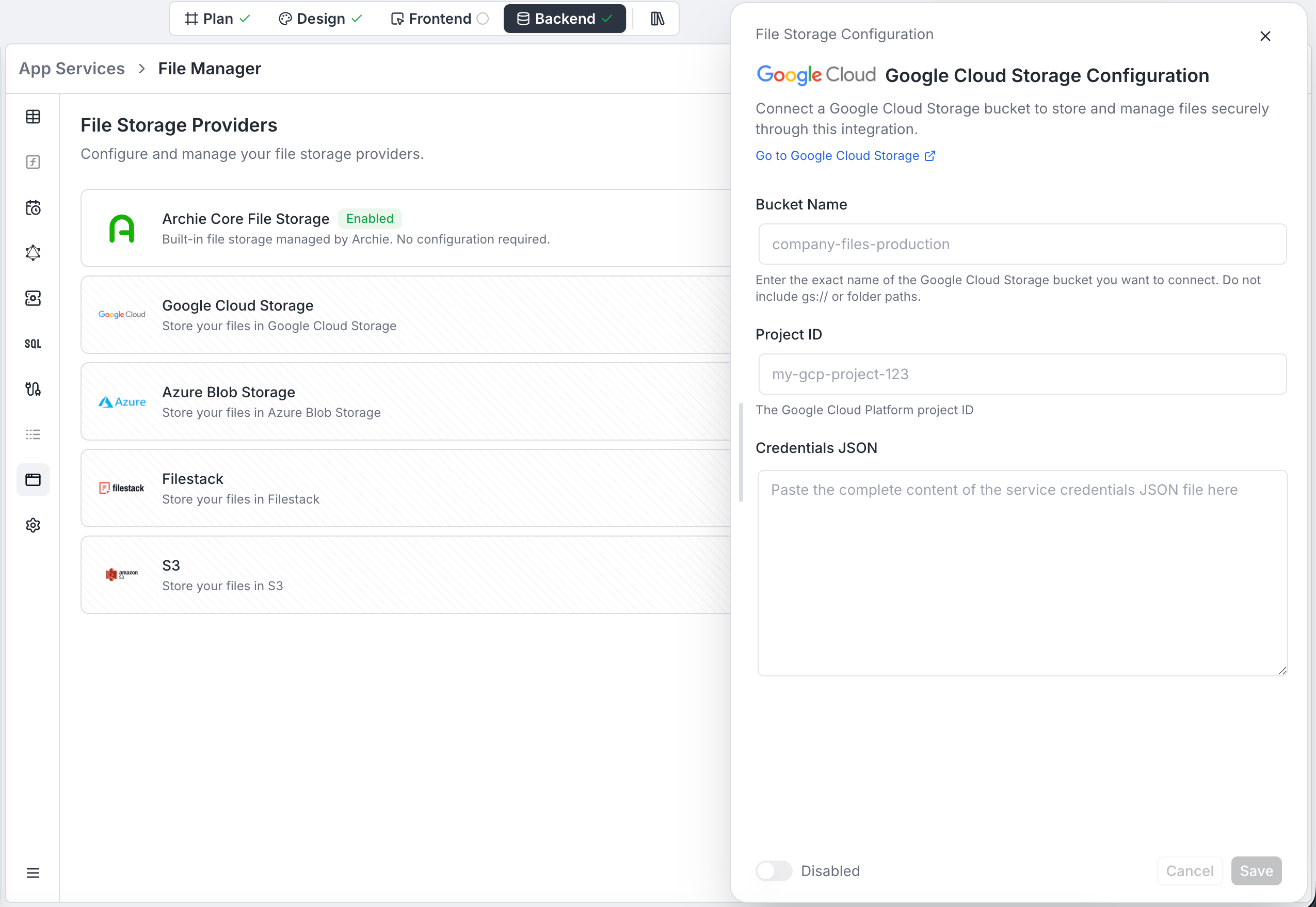 The service account needs the **Storage Object Admin** role on the bucket — enough to create, read, and delete objects but not to manage the bucket itself.
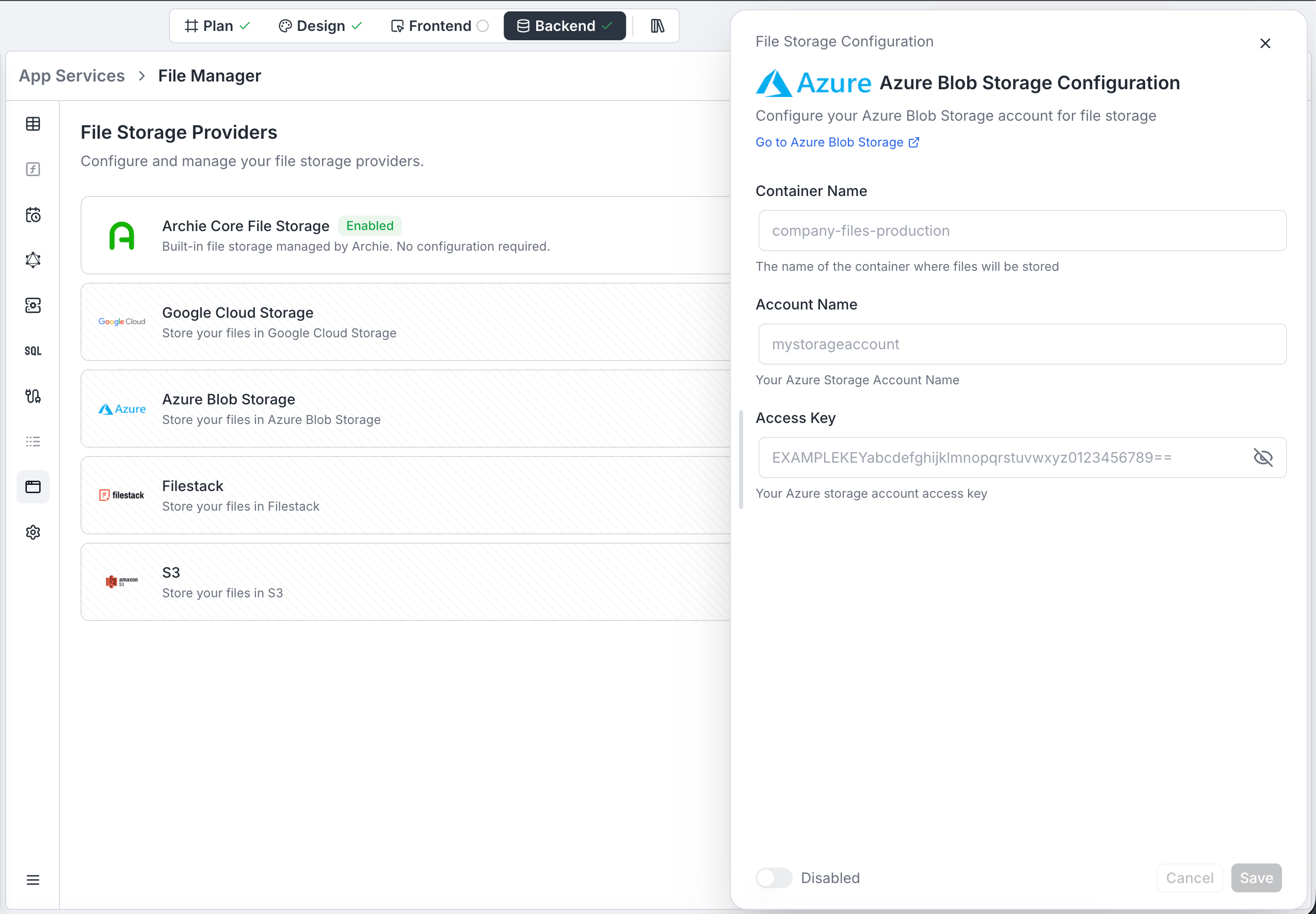
### Azure Blob Storage
| Field | What goes in it |
| ------------------ | ------------------------------------------------------- |
| **Container Name** | Name of the container within your storage account. |
| **Account Name** | Name of the Azure Storage Account. |
| **Access Key** | Storage account access key for authenticating requests. |
The service account needs the **Storage Object Admin** role on the bucket — enough to create, read, and delete objects but not to manage the bucket itself.
### Azure Blob Storage
| Field | What goes in it |
| ------------------ | ------------------------------------------------------- |
| **Container Name** | Name of the container within your storage account. |
| **Account Name** | Name of the Azure Storage Account. |
| **Access Key** | Storage account access key for authenticating requests. |
 ### Filestack
| Field | What goes in it |
| --------------- | ------------------------------------------------------------------ |
| **Bucket Name** | Name of the bucket associated with your Filestack storage backend. |
| **API Key** | Filestack API Key from your Filestack dashboard. |
### Filestack
| Field | What goes in it |
| --------------- | ------------------------------------------------------------------ |
| **Bucket Name** | Name of the bucket associated with your Filestack storage backend. |
| **API Key** | Filestack API Key from your Filestack dashboard. |
 ## Uploading and retrieving files
The configured provider backs the standard file endpoints. You don't call the storage provider directly — Archie handles signing, validation, and access control.
* **REST:** `POST /api/rest/files`, `GET /api/rest/files/{id}`, `DELETE /api/rest/files/{id}`. Full reference at [REST → File management](/docs/features/backend/rest-api-explorer/file-management).
* **Records:** Store the returned `fileId` on a record (typically in a JSONB or text field) and re-issue the signed download URL when you need to serve the file.
### Uploading via GraphQL
Archie also exposes an `uploadFile` mutation automatically — you don't write a resolver for it.
```graphql theme={null}
mutation UploadFile(
$providerType: ProviderType!
$file: Upload!
$filename: String!
$contentType: String!
) {
uploadFile(
providerType: $providerType
file: $file
filename: $filename
contentType: $contentType
)
}
```
```json theme={null}
{
"providerType": "ARCHIE_STORAGE",
"filename": "image.png",
"contentType": "image/png"
}
```
The same mutation works for every provider — only `providerType` changes:
| providerType | Provider |
| ---------------- | ------------------------- |
| `S3` | Amazon S3 |
| `AZURE` | Azure Blob Storage |
| `FILESTACK` | Filestack |
| `GCS` | Google Cloud Storage |
| `ARCHIE_STORAGE` | Archie's built-in storage |
Pass whichever value matches the provider configured for your project.
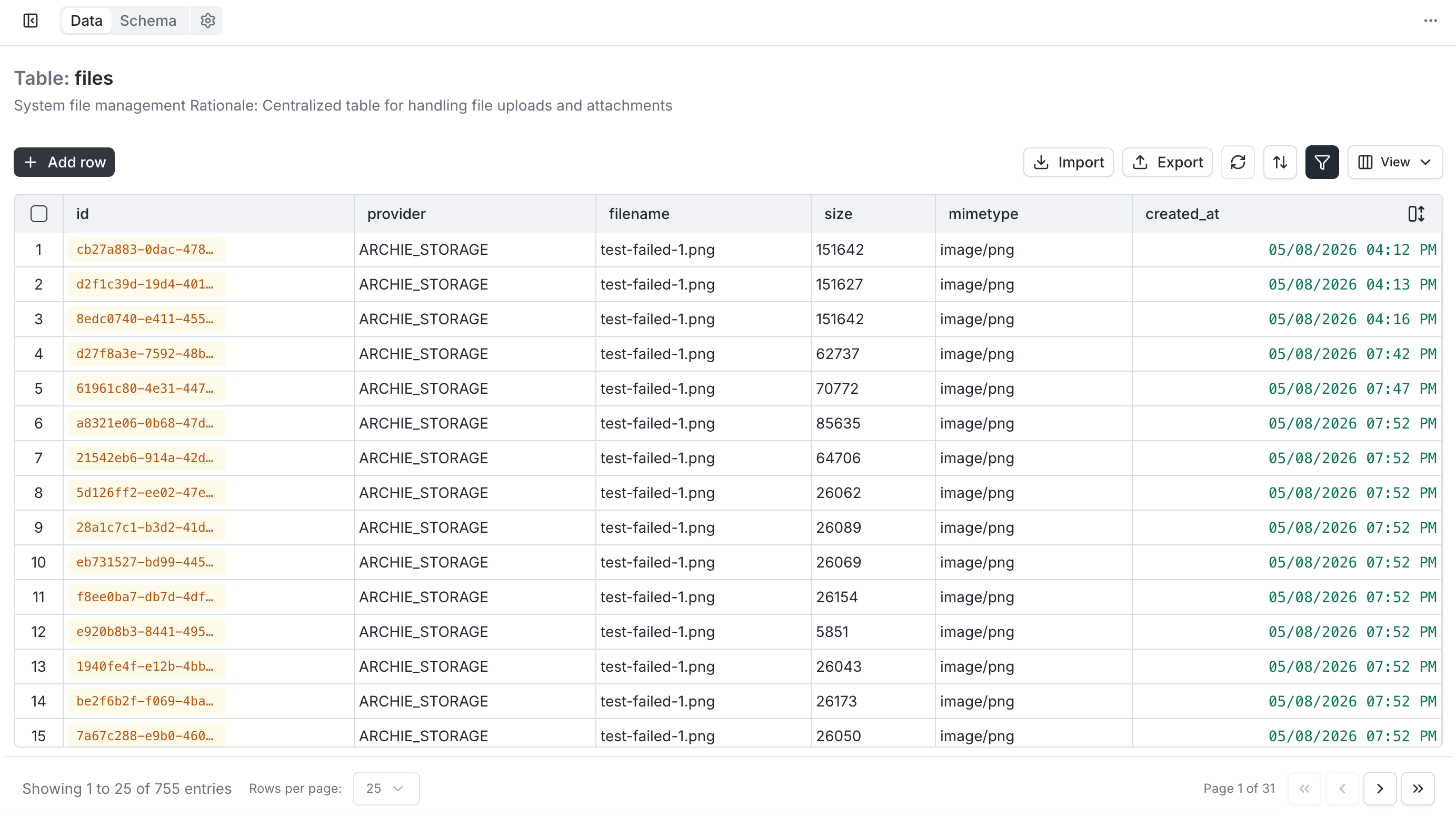
Once the upload succeeds, Archie creates a record in the **files** table of the Data Model with everything you need to consume the file from any application — `filename`, `size`, `mimeType`, and `downloadUrl`.
## Uploading and retrieving files
The configured provider backs the standard file endpoints. You don't call the storage provider directly — Archie handles signing, validation, and access control.
* **REST:** `POST /api/rest/files`, `GET /api/rest/files/{id}`, `DELETE /api/rest/files/{id}`. Full reference at [REST → File management](/docs/features/backend/rest-api-explorer/file-management).
* **Records:** Store the returned `fileId` on a record (typically in a JSONB or text field) and re-issue the signed download URL when you need to serve the file.
### Uploading via GraphQL
Archie also exposes an `uploadFile` mutation automatically — you don't write a resolver for it.
```graphql theme={null}
mutation UploadFile(
$providerType: ProviderType!
$file: Upload!
$filename: String!
$contentType: String!
) {
uploadFile(
providerType: $providerType
file: $file
filename: $filename
contentType: $contentType
)
}
```
```json theme={null}
{
"providerType": "ARCHIE_STORAGE",
"filename": "image.png",
"contentType": "image/png"
}
```
The same mutation works for every provider — only `providerType` changes:
| providerType | Provider |
| ---------------- | ------------------------- |
| `S3` | Amazon S3 |
| `AZURE` | Azure Blob Storage |
| `FILESTACK` | Filestack |
| `GCS` | Google Cloud Storage |
| `ARCHIE_STORAGE` | Archie's built-in storage |
Pass whichever value matches the provider configured for your project.
Once the upload succeeds, Archie creates a record in the **files** table of the Data Model with everything you need to consume the file from any application — `filename`, `size`, `mimeType`, and `downloadUrl`.
 ## Supported MIME types
The upload endpoint accepts a broad allowlist by prefix:
| Category | Examples |
| --------- | -------------------------------------------------------------- |
| Images | All `image/*` (jpeg, png, gif, webp, svg+xml, bmp, tiff, avif) |
| Video | All `video/*` (mp4, webm, quicktime) |
| Audio | All `audio/*` (mpeg, wav, ogg) |
| Text | All `text/*` (plain, csv, html, xml) |
| Documents | `application/pdf`, MS Office, OpenXML formats |
| Archives | `application/zip`, `application/gzip`, `application/x-tar` |
| Data | `application/json`, `application/xml` |
| Generic | `application/octet-stream` |
Unsupported types return `422 Unprocessable Entity` from the upload endpoint.
## Permissions
Who can upload, list, download, and delete files is governed in [Role-Based Access](/docs/features/backend/app-services/role-based-access) like every other endpoint. For per-record file access (a user can only download files attached to records they own), reference the file from a Data Model record and govern access through that table's permissions.
## FAQ
Yes — every supported provider can be configured concurrently. When uploading, you select the target provider via the `providerType` form field. Useful for migrations or tiered storage (hot in S3, cold in Glacier-backed S3, archived in another bucket).
Only if you explicitly tick **File storage providers** in the branching modal. The copy gets a new ID, so future edits don't propagate back. Branching never copies authentication-provider secrets — those stay env-specific by design.
They stay in the old provider until you migrate them. Archie tracks the provider per file, so old uploads keep resolving to their original bucket. Run a migration script if you want to consolidate.
Enforced at the gateway. Exceeding it returns `413 Payload Too Large`. For very large files, use a direct-to-storage upload pattern through your provider's SDK and store only the resulting object key in Archie.
Upload the file to get a `fileId`, then store that `fileId` on a JSONB or text field on the record. Re-issue the signed URL through the download endpoint when you need to serve it. See [REST → File management](/docs/features/backend/rest-api-explorer/file-management).
## Supported MIME types
The upload endpoint accepts a broad allowlist by prefix:
| Category | Examples |
| --------- | -------------------------------------------------------------- |
| Images | All `image/*` (jpeg, png, gif, webp, svg+xml, bmp, tiff, avif) |
| Video | All `video/*` (mp4, webm, quicktime) |
| Audio | All `audio/*` (mpeg, wav, ogg) |
| Text | All `text/*` (plain, csv, html, xml) |
| Documents | `application/pdf`, MS Office, OpenXML formats |
| Archives | `application/zip`, `application/gzip`, `application/x-tar` |
| Data | `application/json`, `application/xml` |
| Generic | `application/octet-stream` |
Unsupported types return `422 Unprocessable Entity` from the upload endpoint.
## Permissions
Who can upload, list, download, and delete files is governed in [Role-Based Access](/docs/features/backend/app-services/role-based-access) like every other endpoint. For per-record file access (a user can only download files attached to records they own), reference the file from a Data Model record and govern access through that table's permissions.
## FAQ
Yes — every supported provider can be configured concurrently. When uploading, you select the target provider via the `providerType` form field. Useful for migrations or tiered storage (hot in S3, cold in Glacier-backed S3, archived in another bucket).
Only if you explicitly tick **File storage providers** in the branching modal. The copy gets a new ID, so future edits don't propagate back. Branching never copies authentication-provider secrets — those stay env-specific by design.
They stay in the old provider until you migrate them. Archie tracks the provider per file, so old uploads keep resolving to their original bucket. Run a migration script if you want to consolidate.
Enforced at the gateway. Exceeding it returns `413 Payload Too Large`. For very large files, use a direct-to-storage upload pattern through your provider's SDK and store only the resulting object key in Archie.
Upload the file to get a `fileId`, then store that `fileId` on a JSONB or text field on the record. Re-issue the signed URL through the download endpoint when you need to serve it. See [REST → File management](/docs/features/backend/rest-api-explorer/file-management).