> ## Documentation Index
> Fetch the complete documentation index at: https://archie.com/docs/llms.txt
> Use this file to discover all available pages before exploring further.
# Generating a blueprint
> Submit an idea and let Archie produce your blueprint.
Generating a blueprint is the first thing that happens when you create a project. This page covers how it works and what to expect.
## Submitting an idea
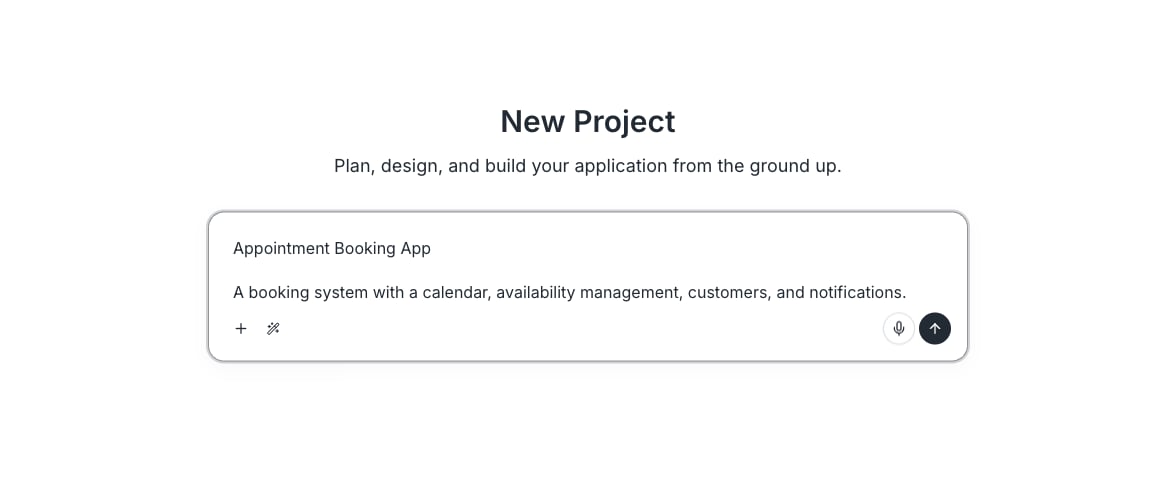
From **New project**, type your idea in the input. There is no prompt template, no required structure, no character minimum. Archie infers what is missing. Examples that work:
* "A booking system for a small dental practice."
* "A course platform where teachers upload lessons and students pay per course. Stripe for payments. Email notifications when a new lesson is published."
* A few paragraphs describing your app in detail.
Click submit. Archie creates the project and starts generating.
 ## Improving your prompt
Before you submit, use the AI Assistant to refine what you typed. Click the wand icon next to the input to open **Improve**, **Expand**, and **Condense**.
## Improving your prompt
Before you submit, use the AI Assistant to refine what you typed. Click the wand icon next to the input to open **Improve**, **Expand**, and **Condense**.
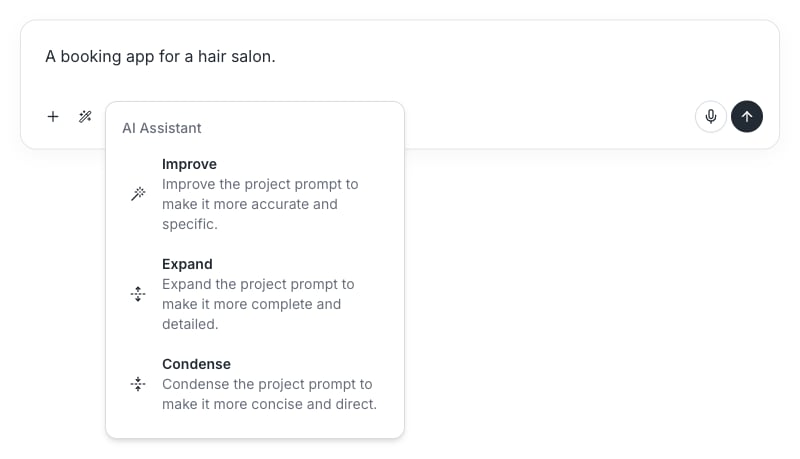 * **Improve** — Rewrites your prompt to be more accurate and specific.
* **Expand** — Adds detail: user roles, features, screens, and data models inferred from your idea.
* **Condense** — Tightens a long or detailed prompt into a more direct version while keeping the key requirements.
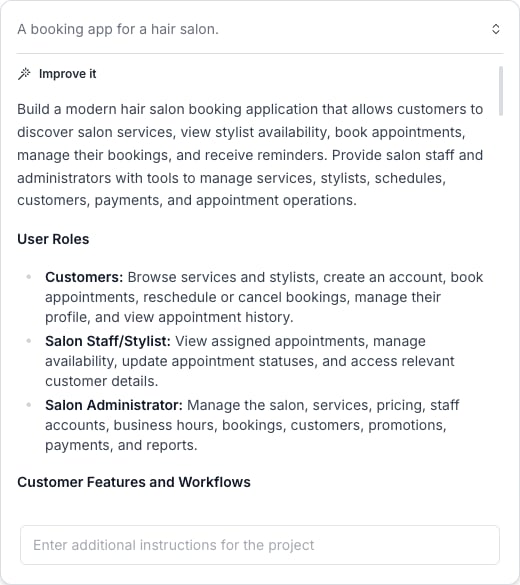
For example, typing "A booking app for a hair salon" and clicking **Improve** turns it into a structured brief with user roles, features, and data models:
* **Improve** — Rewrites your prompt to be more accurate and specific.
* **Expand** — Adds detail: user roles, features, screens, and data models inferred from your idea.
* **Condense** — Tightens a long or detailed prompt into a more direct version while keeping the key requirements.
For example, typing "A booking app for a hair salon" and clicking **Improve** turns it into a structured brief with user roles, features, and data models:
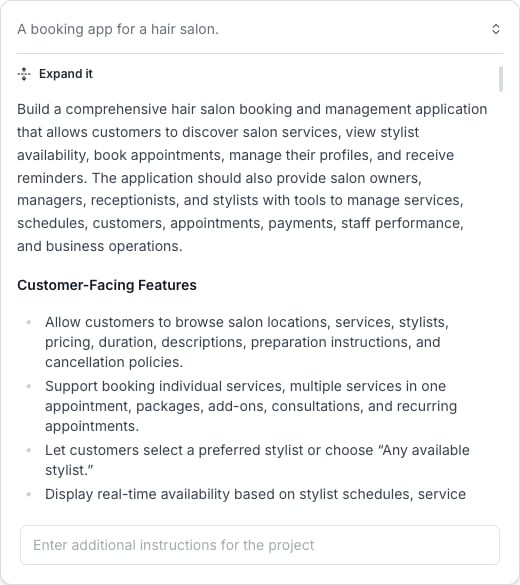
 **Expand** takes the same short prompt further, adding more complete detail across every section:
 **Condense** works the other way: paste in a long, detailed description and it distills it down to the essentials:
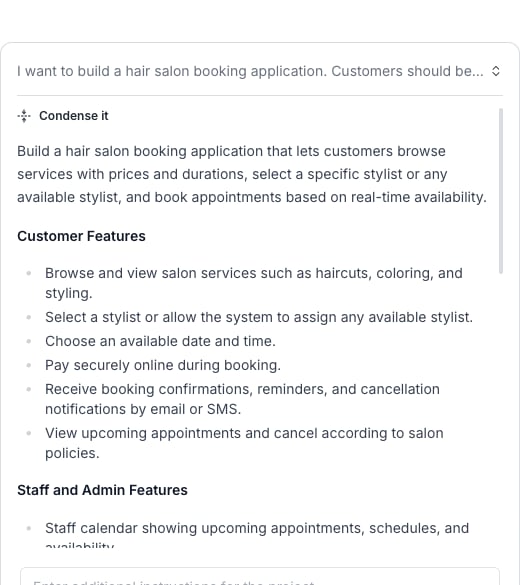 Each option opens a preview with **Insert** and **Retry** buttons. Click **Insert** to replace your prompt with the generated version, or **Retry** to generate again. You can also type additional instructions below the preview to steer the result, or run another Improve, Expand, or Condense pass directly from the preview panel.
## What happens during generation
Generation usually completes in 30–60 seconds. While it runs:
* The blueprint page shows a waiting state with status updates
* Archie may ask one or two clarifying questions in the Context tab
* The connection reconnects automatically if you close the tab and come back
When generation finishes, the blueprint page populates with all six sections (Overview, Modules, User types, System services, Integrations, Tech stack).
## What you get
The first blueprint is a starting point, not a final answer. Expect:
* **Modules** that capture the major features in your idea
* **User types** inferred from the description (admin, customer, and so on)
* **System services** chosen based on what your app needs (auth, file storage)
* **Integrations** matched to features in your idea (Stripe if you mentioned payments)
* A **tech stack** preselected for the kind of app you are building
If the first pass is wrong in places, that is normal. Editing is the next step.
## Re-generating
You can regenerate a blueprint section if it is significantly off. Use the regenerate dropdown in the section header. Regeneration costs credits — usually a small amount per section.
For smaller changes, edit directly or use the [blueprint chat](/docs/features/blueprint/iterating).
## FAQ
The blueprint page shows an error and lets you retry. If retries also fail, contact support.
Initial blueprint generation is included. Regenerating individual sections may use a small number of credits.
Paste it as your idea. Archie reads structured notes (bulleted lists, headings) the same as flowing prose.
Each option opens a preview with **Insert** and **Retry** buttons. Click **Insert** to replace your prompt with the generated version, or **Retry** to generate again. You can also type additional instructions below the preview to steer the result, or run another Improve, Expand, or Condense pass directly from the preview panel.
## What happens during generation
Generation usually completes in 30–60 seconds. While it runs:
* The blueprint page shows a waiting state with status updates
* Archie may ask one or two clarifying questions in the Context tab
* The connection reconnects automatically if you close the tab and come back
When generation finishes, the blueprint page populates with all six sections (Overview, Modules, User types, System services, Integrations, Tech stack).
## What you get
The first blueprint is a starting point, not a final answer. Expect:
* **Modules** that capture the major features in your idea
* **User types** inferred from the description (admin, customer, and so on)
* **System services** chosen based on what your app needs (auth, file storage)
* **Integrations** matched to features in your idea (Stripe if you mentioned payments)
* A **tech stack** preselected for the kind of app you are building
If the first pass is wrong in places, that is normal. Editing is the next step.
## Re-generating
You can regenerate a blueprint section if it is significantly off. Use the regenerate dropdown in the section header. Regeneration costs credits — usually a small amount per section.
For smaller changes, edit directly or use the [blueprint chat](/docs/features/blueprint/iterating).
## FAQ
The blueprint page shows an error and lets you retry. If retries also fail, contact support.
Initial blueprint generation is included. Regenerating individual sections may use a small number of credits.
Paste it as your idea. Archie reads structured notes (bulleted lists, headings) the same as flowing prose.